

If Master Crash is installed but will not open, first note what happens after you tap its icon: an immediate return to the home screen, a frozen launch screen, or a working app with a login error. Those are different problems. Start with a restart and one controlled retry; leave data deletion and reinstallation until you know how to recover access and which app you have installed.
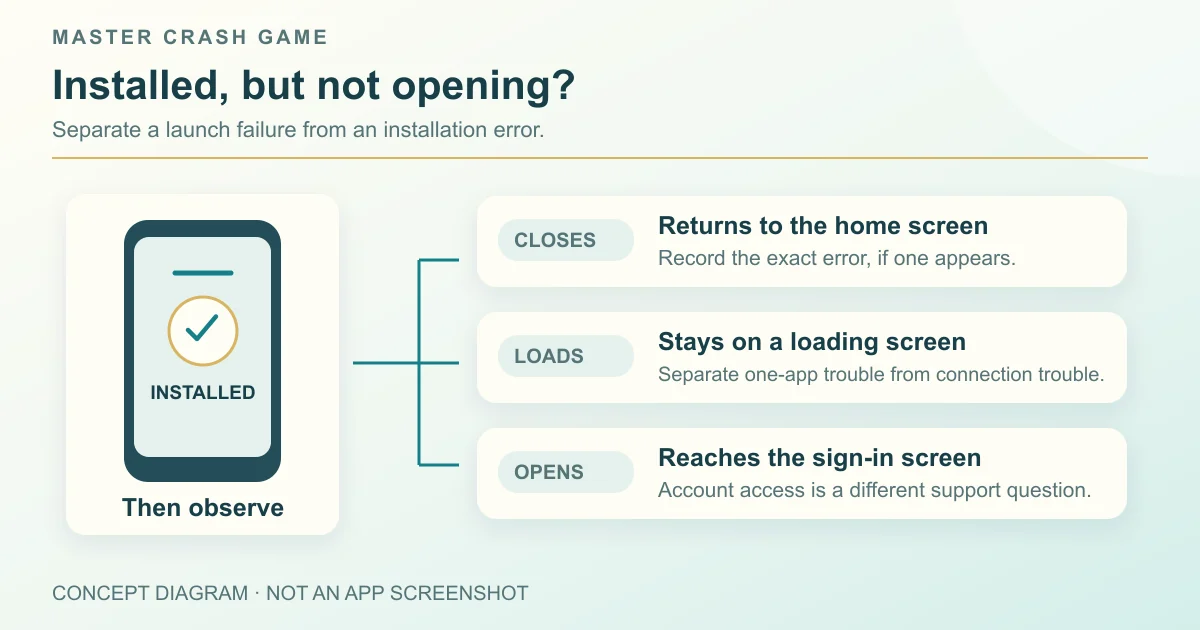
Choose the row that matches your screen
An icon on the phone does not describe the failure. Watch one launch and record the last screen you can actually see. Copy an error exactly, including any number. “Does not open after the logo” is more useful than “not working”; “opens, then rejects my login” points to a different route.
Swipe sideways to read the full table →
| What you observe | First useful check | What it does not establish |
|---|---|---|
| Returns to the home screen immediately | Record the installed version; restart the phone and retry once. | The cause is not identified by the disappearing screen. |
| Logo or loading screen remains visible | Check whether another ordinary online service works on the same connection. | A working connection does not prove this app’s service is available. |
| Login page opens, but access fails | Keep the exact login message and verify the account recovery route. | The app has launched; repeated installation is not an account diagnosis. |
| Android says the app is not installed | Use the separate installation-error guide. | This is an installer problem, not a launch failure. |
For the last row, follow the Android installation-error checks. This article begins after Android has accepted an installation.
Change one thing, then try the same launch again
Record the phone model, Android version and installed app version before making changes. Restart the phone normally. Then try the same action once, without changing the network, clearing data and installing another file all at the same time. If the result changes, you will know which step preceded it.
When only this app remains unresponsive, Android’s App info screen usually offers Force stop. Use that control, then reopen the app. Menu names vary by manufacturer. Check for a system update in Settings and an app update through the source that matches the installed product; do not pick another similarly named download as a shortcut.
These are general Android checks from Google’s installed-app troubleshooting guide. They are not a confirmed fix for a particular Master Crash release. Keep a brief note such as “restart: unchanged; force stop: still closes after logo” rather than repeating an unsuccessful step.
If it stays on a loading screen
Open a familiar website in the browser. If that also fails, investigate the phone’s connection before treating the app as the only problem. If it works, return to the app and note whether the same loading state persists. You have narrowed the observation; you have not established a server outage or ruled out an app-specific fault.
If practical, make one comparison on another trusted connection after leaving any active session. Record whether the symptom changes. Do not bypass a workplace restriction or a security warning to perform the comparison. A changed result can help a support team investigate, but it does not tell you which network component caused it.
A loading screen after an entry or payment request deserves a different pause. Preserve the time, displayed state and any reference already available. Do not repeat the request just to see whether the button works. Reopening the app is not proof that the earlier request failed; check its record when access returns.
Cache and storage are different decisions
In App info, look for a section named Storage or Storage & cache. If you choose Clear cache, check that exact label before tapping. Clear storage or Clear data is a separate action, even when it sits beside the cache control.
Google distinguishes temporary cached files from app storage: clearing cache removes temporary data; clearing storage deletes the app’s local data. An app may take longer to load while it rebuilds a cache. Neither operation supplies evidence about the state of a remote account or an unsettled round.
Swipe sideways to read the full table →
| Action | Reason to consider it | What to check first |
|---|---|---|
| Clear cache | The app still fails after a restart or force stop. | Select the cache control, not the adjacent storage/data control. |
| Clear storage/data | A verified product-specific recovery process calls for a reset. | Confirm the sign-in method, recovery access and any local records you need. |
| Uninstall | Reinstallation is the documented next step for this exact app. | Preserve evidence and verify a matching installation source before removal. |
For an unresolved account, balance or round record, keep the existing installation while asking the actual product’s support team what a reset would remove. A cloud account may retain some records, but this website has not verified how either linked app stores or restores them.
Before reinstalling, identify the app you would remove
Write down the installed version and the store or file source you used. If App info offers App details in store, use it to open the associated listing. Otherwise, keep the available identity information and ask the verified publisher how to check the remaining fields. A display name alone is not enough.
This website’s former Google Play entry and its separately recorded APK have different application IDs. Do not switch between them as though you were reinstalling the same build. An unsuccessful launch does not make their accounts, saved data or update paths interchangeable.
Use the Master Crash Google Play and APK comparison before changing channels. If the existing app is still accessible at times, preserve needed records first. Do not remove it simply because a search result calls another file “latest”.
Send a report that someone can reproduce
After the low-impact checks, repeated failure is a reason to report the pattern. For a Play installation, open the matching listing and look for App support. For another source, verify the publisher’s route against the product you actually installed. This website’s editorial contact is not automatically the app developer’s account-support desk.
Google’s developer-contact guidance explains where Play lists support details. The following is an invented report structure you can adapt; it is not a known incident or a claim that these steps have been tested on the linked app.
“Phone: [model], Android: [version], app: [installed version and source]. At [time and time zone], I tapped the icon and [exact result]. The last visible screen was [screen/message]. Restarting changed nothing; [other completed check] produced [result]. I have not cleared storage or uninstalled. Please confirm the next step for this build.”
Include a cropped screenshot if it adds information. Remove passwords, one-time codes, payment PINs and unrelated personal details. If a previous request may still be unresolved, say so and provide its reference through the verified private channel when asked.
For the file identity behind this site’s Android download, return to the Master Crash download details. Compare the record with your own file before considering another installation.
Frequently asked questions
Is Master Crash down right now?
This guide does not monitor live service status. A loading screen alone does not prove an outage. Record the time and error, check the exact product’s published notices, and report a persistent fault through its verified support route.
Sources and scope
This is an Android troubleshooting guide, not a report of a confirmed Master Crash fault or a live outage monitor. Menus vary by device. Neither linked app was installed or run for this article.
Google’s Android help documents support the restart, force-stop, cache and developer-contact guidance. The symptom table, single-change troubleshooting sequence and sample support report are original editorial tools. No recovery or settlement behaviour is asserted for either linked app.
Adults 18+. Set time and spending boundaries before participation. Read the limits and breaks guide.
Related reading
Teen Patti APK Not Installed? Try These Checks
Troubleshoot a Teen Patti APK not installed message by checking file completion, Android compatibility, storage, update conflicts and security warnings.
Read the guide Mithila Kamat
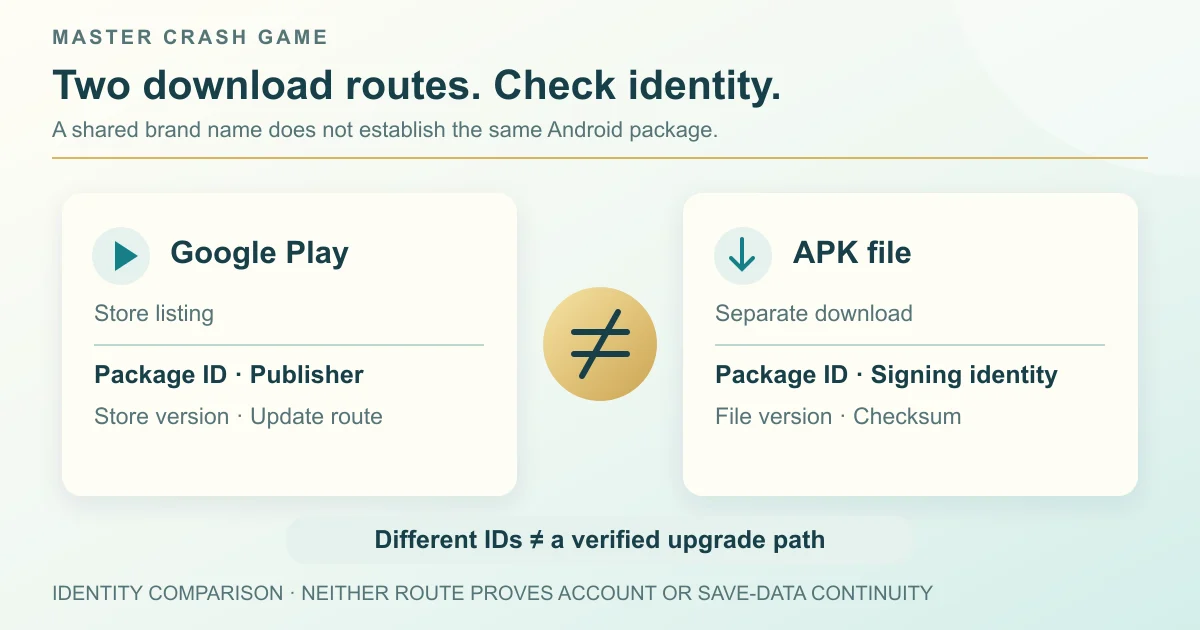
Master Crash Google Play vs APK: Which App Is Which?
Compare the Master Crash Google Play listing with this site’s recorded APK. Check their different app IDs before an install, update or account move.
Read the guide Revat Desai
Teen Patti Customer Care: How to Verify Support
Verify Teen Patti customer care using the actual product and publisher channels. Prepare useful evidence and keep OTPs, passwords and payment PINs private.
Read the guideMithila Kamat